
AI Image Editor
Describe a change in words to erase objects, recolor details, or swap the scene.
 AI Prompt Generator
Turn a small or low-resolution image into a 2K or 4K file. The AI adds back fine detail as it enlarges, so the bigger version still looks crisp.
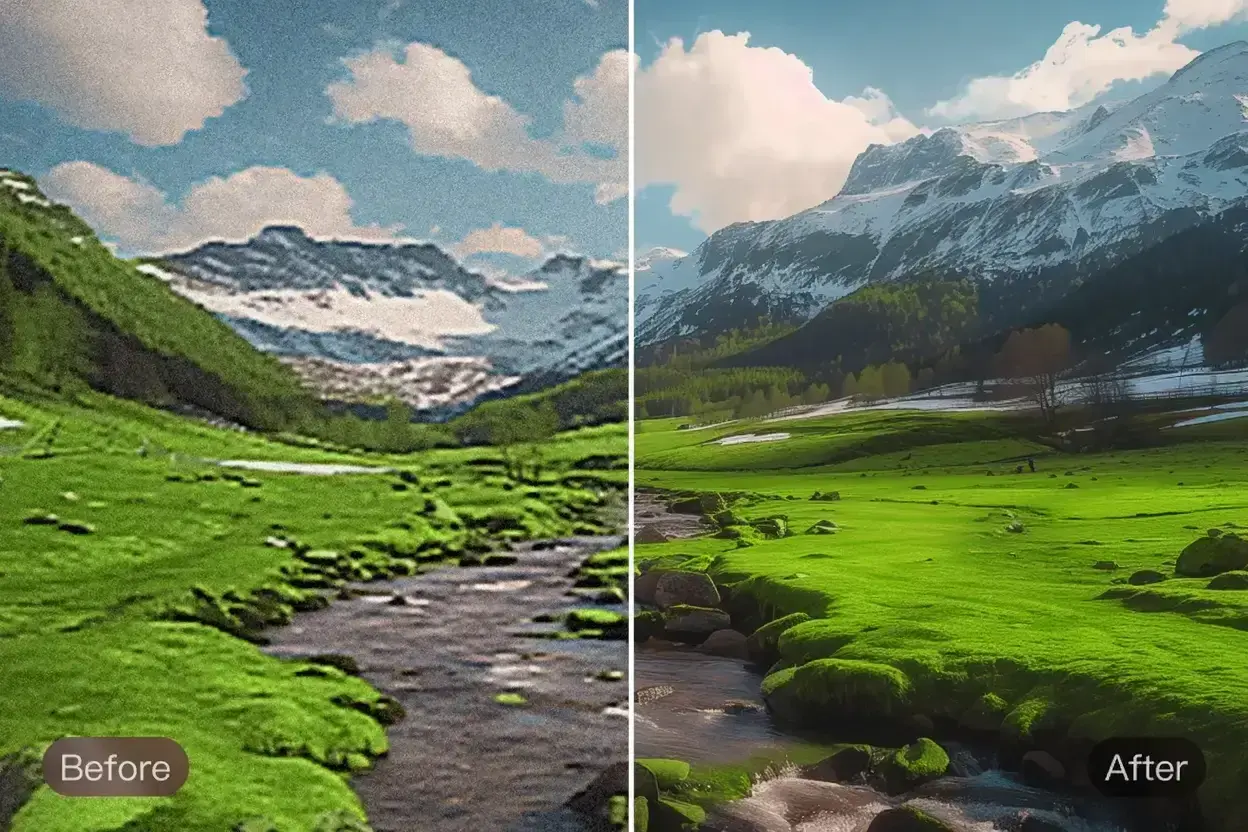
Use it when an image looks right but is too small for where it needs to go.
Prepare 4K files that stay sharp on posters, flyers, framed prints, and large screens.
Give shoppers enough resolution to zoom into product details on listings and store pages.
Enlarge generated images, screenshots, and social graphics for banners, slides, and wallpapers.
Resizing in a normal editor just spreads the existing blur over more pixels. AI upscaling rebuilds detail, so the larger file holds up.
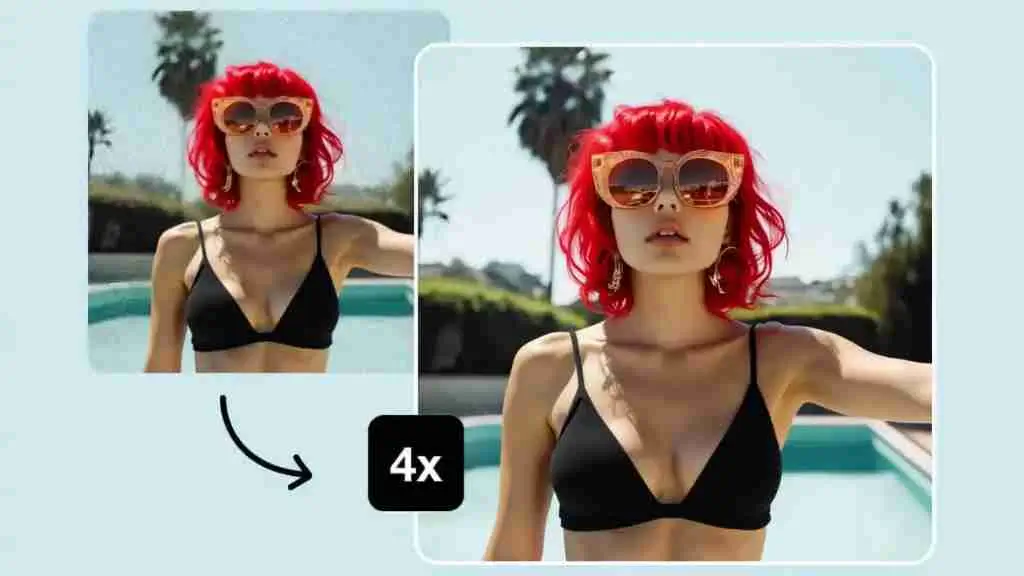
A larger, sharper image in three steps
Use the cleanest version you have; a better source gives a sharper result.
Choose the output size and run the upscaler. No prompt is needed.
Compare the detail with the original, then download the high-resolution file.
What you get when you enlarge an image.
Choose the size you need for the web, print, or large displays.
Sharp, natural texture instead of the soft, blocky look of plain resizing.
Blur, grain, and JPEG artifacts are reduced while the image is enlarged.
The output has the same aspect ratio as your source, ready to replace it.
For rough photos, run AI Image Enhancer first to get the best final file.
Upload JPG, PNG, or WebP up to 20 MB and download the high-resolution version.
Output sizes, what changes, print use, and cost
Upload a small image and get a sharp, high-resolution version that stays faithful to the original.


